How do I edit the order in which shares and options appear?
- Click on the Logistics icon on the left
- Under Subscriptions, select Subscription Layout
- Select the Shares or Options tab depending on which one you would like to edit
- Click the Edit button in the upper right corner
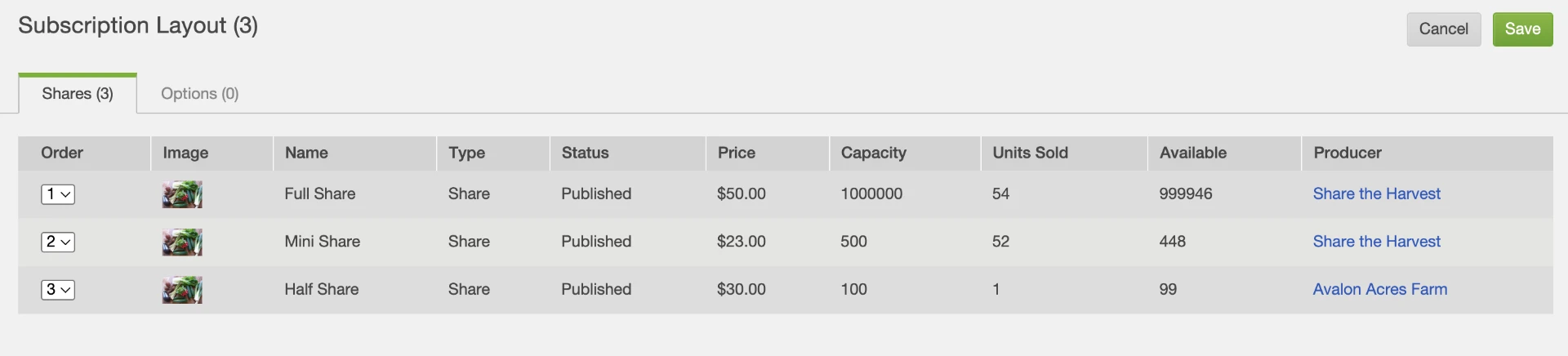
- Next to the item that you want to change, choose the number for the order in which you would like it to appear in the sign-up link for members
LEARN MORE
- What are Published Subscriptions?
- How do I review All Subscriptions?
The order of shares and options in the sign-up process is:
Did this article answer your question?
You might also find these helpful
Still have questions?
Our support team is here.