How can the Box Builder help me plan deliveries?
Home > Logistics > Subscriptions > Box Builder How can the Box Builder help me to manage my deliveries? The Box Builder can help you to plan and manage what goes into your shares and/or options for each delivery. Then you can download the Sourcing Breakdown report to see the total amount that needs to be harvested and the Packing report to see how many boxes you need to pack and what goes in each box.
!Attention!
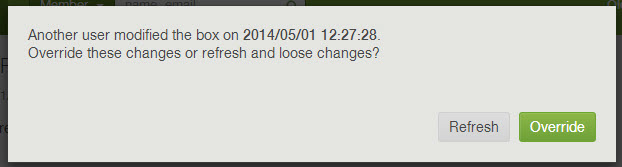
If you and another admin are working on the Box Builder application at the same time, you will see a warning message pop up when attempt to save your changes: "Another user modified the box on [Date and Time]. Override these changes or refresh and loose changes"
- Choose Override to override the changes that the other admin saved at the designated time.
- Choose Refresh to see the changes the other admin made and NOT save your changes.
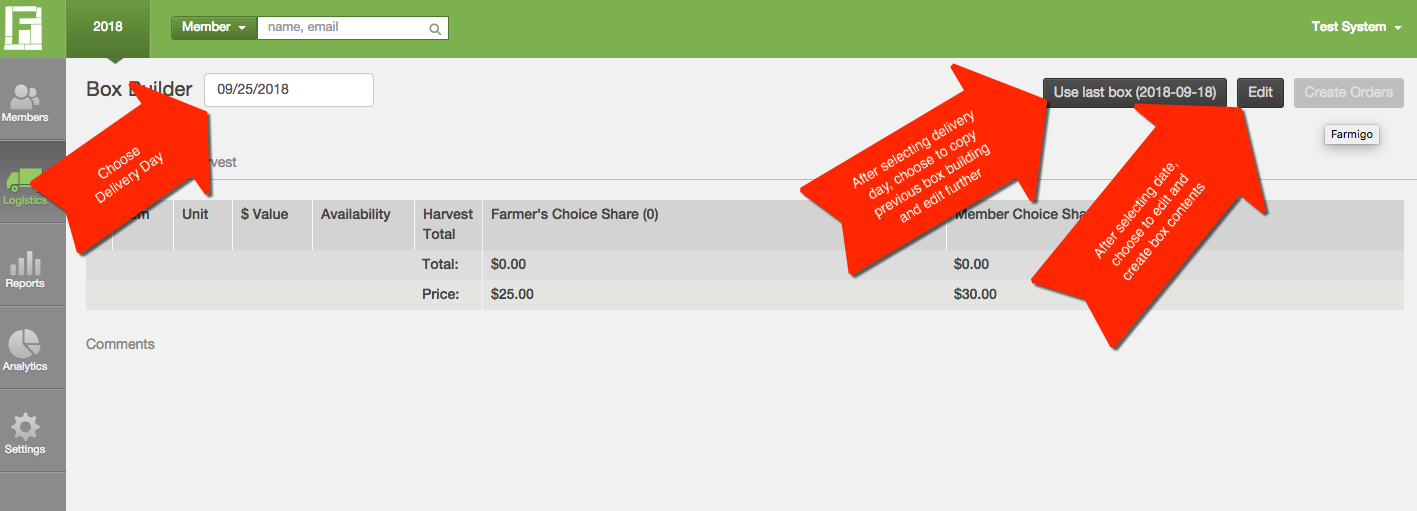
2. Select the delivery date.
3. Click the Edit button in the upper right corner. (Before clicking edit you may have the option to copy the previous boxes built from the last delivery date edited. If you choose this option, the harvest sources will also be copied and then you will have to opportunity to edit the contents further.)
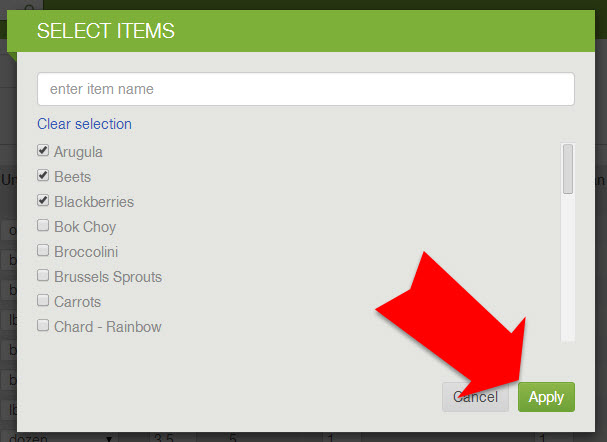
5. Select the items that you would like to add and click Apply.
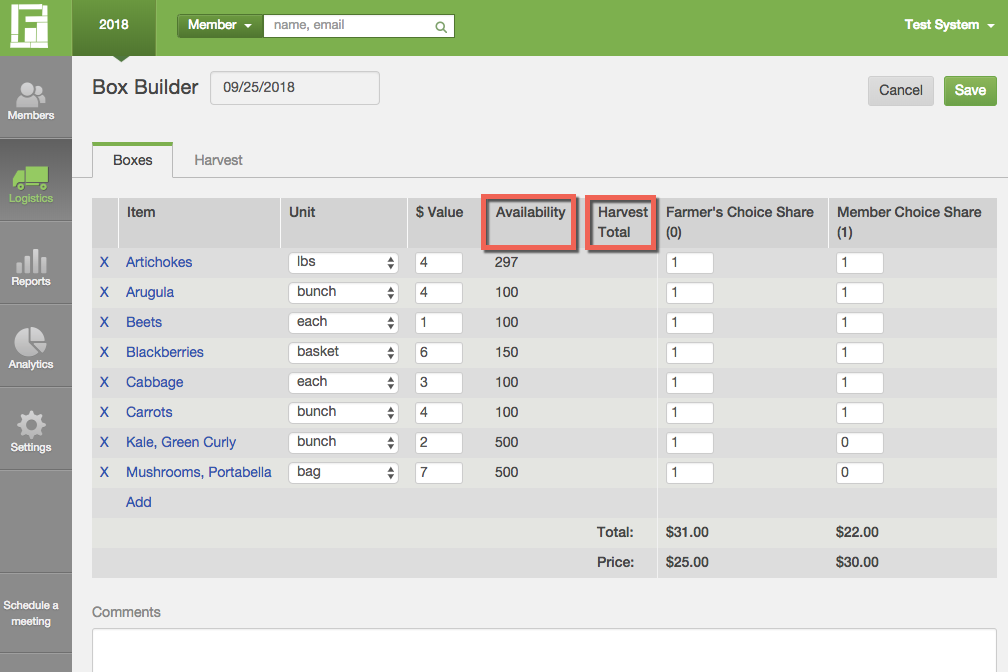
7. As you add items to each box, the system will automatically calculate harvest totals based on the number of each item designated for each share. Next to the harvest total the system will display the capacity available based on the current inventory of the item.
!Attention!
If you and another admin are working on the Box Builder application at the same time, you will see a warning message pop up when attempt to save your changes: "Another user modified the box on [Date and Time]. Override these changes or refresh and loose changes"
- Choose Override to override the changes that the other admin saved at the designated time.
- Choose Refresh to see the changes the other admin made and NOT save your changes.
How to build a box
1. Go to Logistics --> Subscriptions --> Box Builder2. Select the delivery date.
3. Click the Edit button in the upper right corner. (Before clicking edit you may have the option to copy the previous boxes built from the last delivery date edited. If you choose this option, the harvest sources will also be copied and then you will have to opportunity to edit the contents further.)
5. Select the items that you would like to add and click Apply.
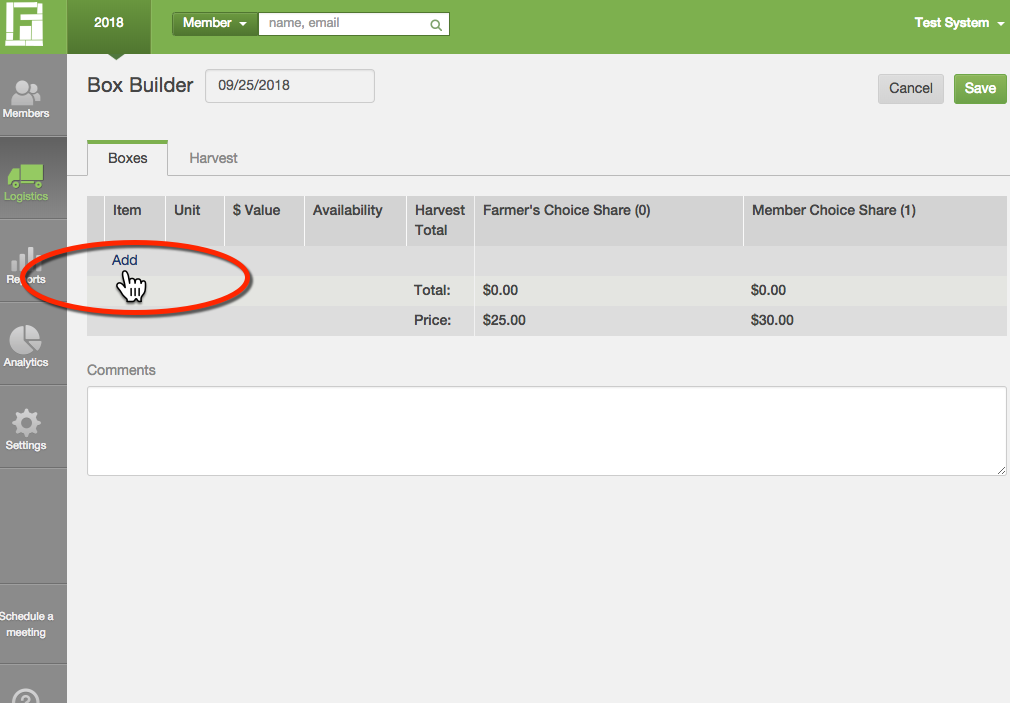
- The table header will remain fixed as your scroll down.
- You may sort rows by clicking on a column header.
7. As you add items to each box, the system will automatically calculate harvest totals based on the number of each item designated for each share. Next to the harvest total the system will display the capacity available based on the current inventory of the item.
How to use the data entered in the box builder
- Click the Harvest tab to assign sources for each item that needs to be harvested.
- Download the Sourcing Breakdown report to see the total amount that needs to be harvested or sourced in order to fill your boxes.
- Download the Packing report to see how many boxes you need to pack and what goes in each box.
- Download the Box Configurations report to see a summary of boxes built for a specific date range. The value that is added for items in the Box Builder will appear here.
How to use the Create Orders button
Do not click this button unless you are managing customizable shares. To learn about how customizable shares work, email support@farmigo.com to set up a phone call with a Farmigo Technical Advisor and click here to read more.Did this article answer your question?
You might also find these helpful
Still have questions?
Our support team is here.