How do I review All Subscriptions?
Home > Logistics > Subscriptions> All Subscriptions How do I review All Subscriptions?
Subscriptions are shares and options that members sign-up for from the join link. They are delivered on a recurring schedule (e.g. Weekly, Biweekly, Monthly). In order for a member to have an active subscription, they must be subscribed to a share. When members signs up, they must first select a share before they have an opportunity to select any options.
Filter by click on the funnel: Next to the column headers for Producer and Status, you can click the funnel symbol to filter the list for specific producers or a specific status.
Download the list by clicking Export: To download a list of all shares and options, click the Export button in the upper right corner.
Select a subscription to edit: To edit a specific share or option, click on its name from the list (learn more).
Select a producer to edit: To review and edit a producer's profile, click on its name under the Producer column (learn more).
!ATTENTION SEASONAL CUSTOMERS! Make sure that the correct season is selected in the upper left corner. (You are managing a seasonal program if members subscribe to a season with a specific start and end date.)
Subscriptions are shares and options that members sign-up for from the join link. They are delivered on a recurring schedule (e.g. Weekly, Biweekly, Monthly). In order for a member to have an active subscription, they must be subscribed to a share. When members signs up, they must first select a share before they have an opportunity to select any options.
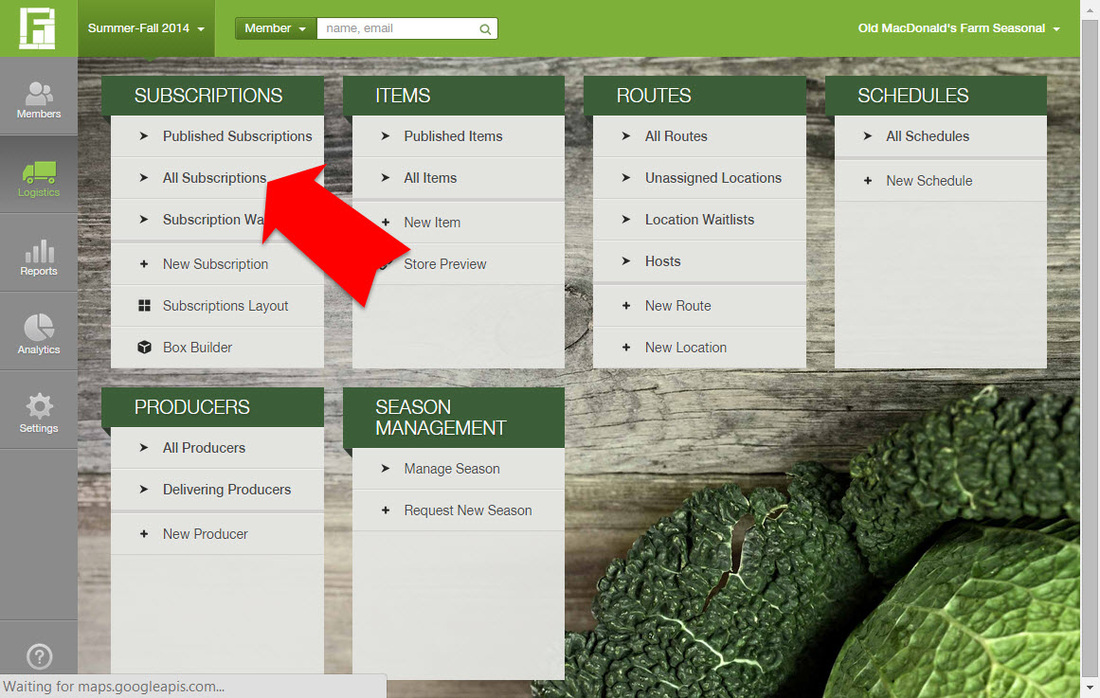
LEARN MOREYou can review all the shares and options that you have created from your dashboard by going to the Logistics page and selecting "All Subscriptions" under the Subscriptions section. Read on below to review the features of this area of the dashboard.
- What are Published Subscriptions?
- How do I Add and Edit subscriptions?
- How do I manage a Subscription Waitlist?
- How do I change the layout of my subscriptions?
- How can the Box Builder help me plan deliveries?
What can I do from the list of published subscriptions?
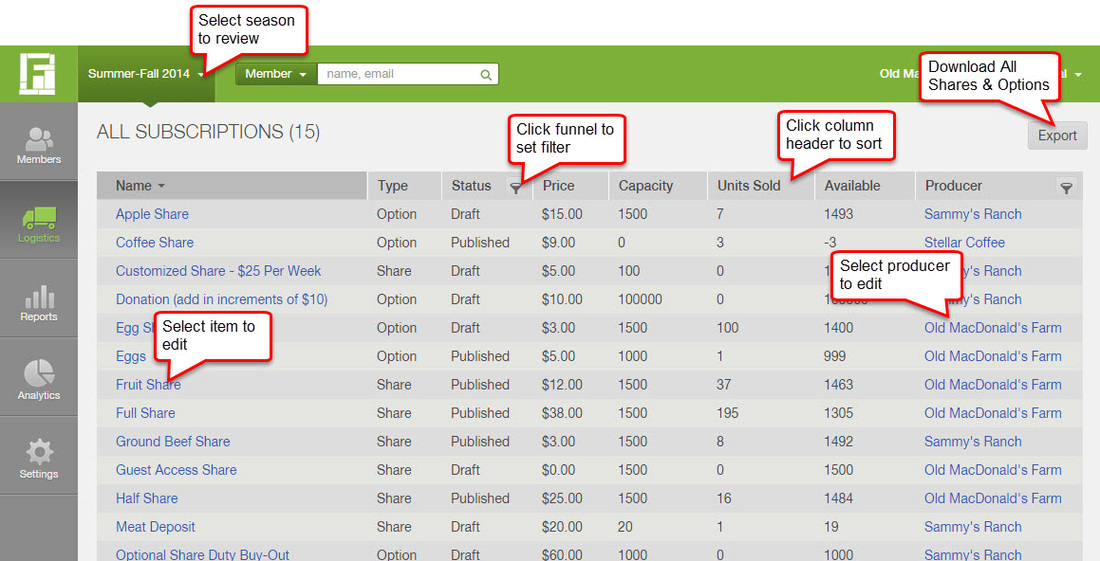
Filter by click on the funnel: Next to the column headers for Producer and Status, you can click the funnel symbol to filter the list for specific producers or a specific status.
Download the list by clicking Export: To download a list of all shares and options, click the Export button in the upper right corner.
Select a subscription to edit: To edit a specific share or option, click on its name from the list (learn more).
Select a producer to edit: To review and edit a producer's profile, click on its name under the Producer column (learn more).
!ATTENTION SEASONAL CUSTOMERS! Make sure that the correct season is selected in the upper left corner. (You are managing a seasonal program if members subscribe to a season with a specific start and end date.)
Did this article answer your question?
You might also find these helpful
Still have questions?
Our support team is here.