Schedules
How do I create and edit schedules?
Your system relies on schedules to perform many functions, including:
- Determining delivery dates
- Pricing & pro-rating shares
- Triggering Automated Alerts
- Setting payment due dates
- Generating reports
Learn:
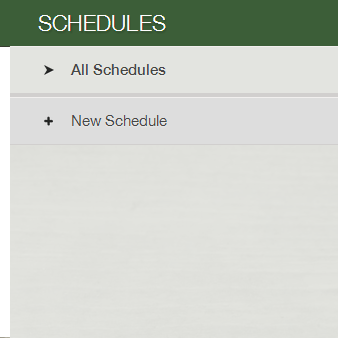
Where do I find schedules?
Schedules are found under the Logistics Icon in the sidebar menu.
How many schedules do I need?
You need different schedules if you have different delivery frequencies. For example weekly delivery vs. biweekly delivery or if you have different pick-up sites with different start and end dates.
If you deliver weekly on Mondays and Tuesdays, you only would need one schedule. This schedule would be called Weekly and you would select both Mondays and Tuesdays within the schedule.
How do I create a new schedule?
- To create a new schedule, click on the Logistics tab and then click + New Schedule.
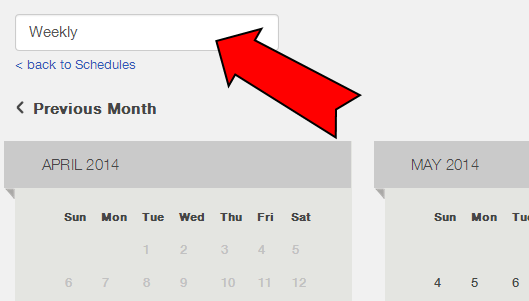
- Enter the schedule name in the upper left hand corner.
- Select the delivery dates. There are two ways to add dates.
A. Add Repeating Deliveries: You can automatically schedule repeated deliveries either Weekly or Every 2 Weeks. To do this click "Add Repeating Deliveries." Select the frequency you want. Then select the days of the week you will deliver. Then select when you want the repeating deliveries to start and end. Press OK. You will see the dates highlight in green in your schedule. If there are days that you need to remove, click on them so that they are no longer green. Press Save to save any changes.
B. Select Specific Delivery Dates: Click on the dates you want to deliver. Anything highlighted in green is a delivery date. Click Save to save the schedule.
IMPORTANT NOTES!
- Creating a new schedule is not the same as creating a new season. To make sure that each aspect of your new season is implemented effectively, including payment plans and deliveries, see Setting up your next season or email support@farmigo.com.
- Make sure that you are editing dates from the correct season when making changes to your schedules. There is a drop-down menu on the upper left of the dashboard. Make sure you have selected the correct season for the delivery dates you are editing.
- You may not add or delete past delivery dates from the system. If you need a past date removed, email support@farmigo.com.
- You may not select delivery dates that conflict with another season. Each season must have its own set of delivery dates and may not overlap.
If you run into any difficulties setting, editing, or deleting dates, email support@farmigo.com.
How do I edit an existing schedule?
- Open the schedule that you would like to edit. For instance, go to Logistics > Schedules > All Schedules and select the schedule from the list.
- Click the Edit button in the upper right corner.
- To add a date, click on it so that it is highlighted in green; to remove a date, click on it so it is no longer highlighted.
- After making adjustments, click Save.
PLEASE NOTE: If you want to remove already scheduled dates, you must remove them before the delivery date has passed. You may only remove a delivery date from the schedule if:
- No boxes have been built in the Box Builder for that date.
- No store orders are scheduled for delivery on that date.
How do I rename a schedule?
- Click on the Logistics Icon in the sidebar menu.
- Under the Subscriptions section, select All Schedules.
- Select the schedule you would like to edit and click Edit.
- Edit the name on the upper left hand side.
How to Delete a Schedule
- Click on the Logistics Icon in the sidebar menu.
- Under the Subscriptions section, select All Schedules.
- Select the schedule you would like to edit and click Edit.
- Once you click Edit, the Delete button will show up.

When you cannot remove a schedule:
If a schedule is associated with a Share item, Option item, or Member's Subscription, a message will pop up alerting you that you may not delete the schedule. You will need to move the associated Items or Members to a new schedule before deleting the schedule. See how to add and edit subscriptions, shares, and options.
Did this article answer your question?
You might also find these helpful
Still have questions?
Our support team is here.