How do I find a list of members with a store order this week?
Members > Store Orders > Store Orders Filters
Filter for specific groups of members with and without store orders
Export your store orders
Email members with store orders
Email members who have not placed a store order
1. Item: Click select to filter for members with a specific item or items in their order
2. Location: Click select to filter for members receiving orders at a specific location or locations
3. Route: Click select to filter for members receiving orders on a specific route or routes
4. Flags: Filter for all members with a specific Flag. Flags can be added under the Contact Info tab of a member account in the dashboard.
5. Status:
- Status - Active: See all members who currently have a store order
- Status - Not Submitted: See all members who have NOT yet submitted a store order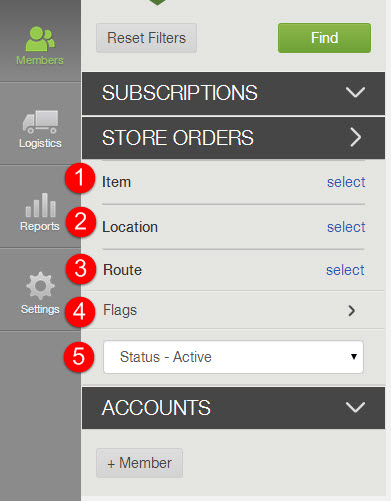
 Export When you click the export button, a CSV file will download. The CSV file of Store Orders includes:
DELIVERY
LAST NAME
FIRST NAME
EMAIL
ITEMS
PICKUP SITE
TOTAL
ISSUES
How can I review store orders?
Under the Store Orders header of the Members page, you can:Filter for specific groups of members with and without store orders
Export your store orders
Email members with store orders
Email members who have not placed a store order
How can I filter for specific Store Orders?
You can use the following filters to bring up a list of members with pending store orders or those without pending store orders. Once you select the filters you would like, click Find to apply the filters. If you want to see a list of all pending store orders, click Reset Filters and then click Find.1. Item: Click select to filter for members with a specific item or items in their order
2. Location: Click select to filter for members receiving orders at a specific location or locations
3. Route: Click select to filter for members receiving orders on a specific route or routes
4. Flags: Filter for all members with a specific Flag. Flags can be added under the Contact Info tab of a member account in the dashboard.
5. Status:
- Status - Active: See all members who currently have a store order
- Status - Not Submitted: See all members who have NOT yet submitted a store order
How do I Export and Email Members With Store Orders?
Just like with subscriptions, you can export and email members who have a store order.DELIVERY
LAST NAME
FIRST NAME
ITEMS
PICKUP SITE
TOTAL
ISSUES
Email Members
To email members with store orders, click the Email Members button in the upper right corner. If you have filters applied, the email will only be sent to the members listed in the results from the applied filters. You can either type an email directly or use one of your previously created templates.Quick Tip: Encourage Members Who Have Not Placed an Order to Shop
Reminding members that they can add items from your store to their subscription is a good way to kick-start higher participation from existing members. We recommend sending an email to all of your members who have not placed a store order. You can use the Status - Not Submitted filter to easily pull a list of these members. Then, click the email members button in the upper right hand corner.Did this article answer your question?
You might also find these helpful
Still have questions?
Our support team is here.