Adjusting Payment Settings
Payment Settings allows you to setup new payment methods or disable payment methods. Additionally, you can update payment integration numbers if necessary.
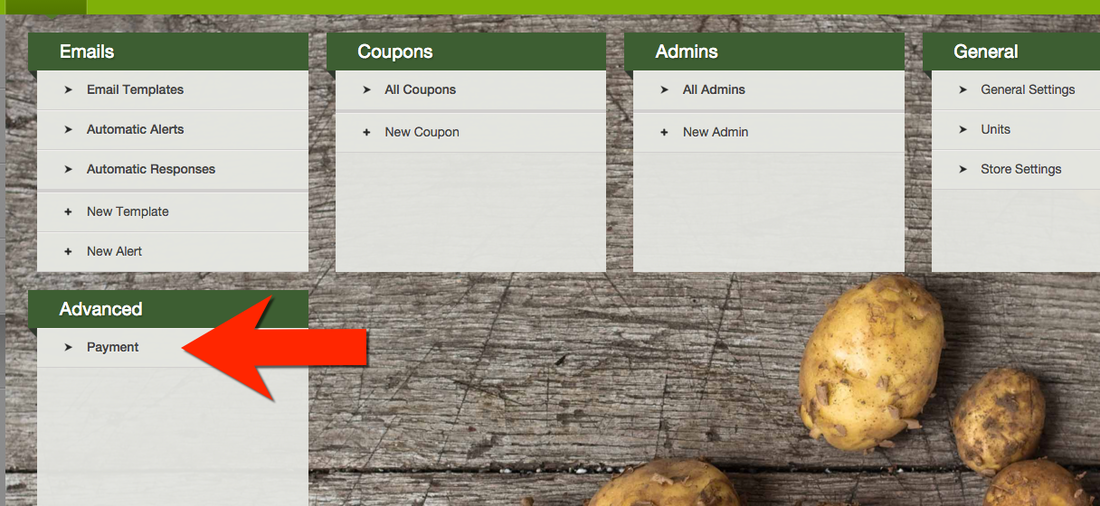
Go to Settings ---> Advanced ---> Payment --> Payment Settings
See also:
Updating Payment Plans
Add Payment Methods
Store Payment Methods
Signup Payment Methods Select Payment Settings ---> Edit
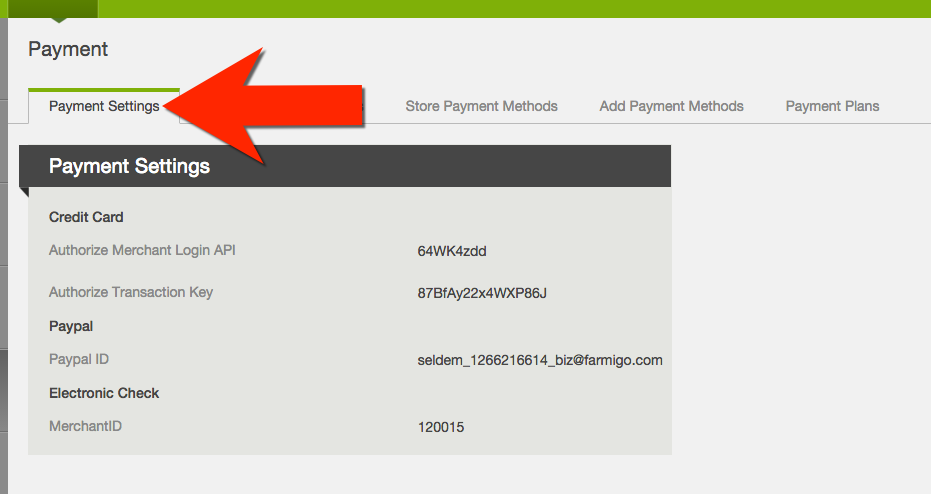
Payment Settings
Click edit to adjust the following payment settings:
1. Credit Card - update Merchant Login API and Transaction Key from Authorize.net. Click here for more info.
The transaction key is like a password that can be changed if necessary. If you change the transaciton key in authorize.net make sure to update in Farmigo.
If you ever change merchant accounts and you have members with existing payment tokens, work with Farmigo Support and the new MSP to retain your existing gateway.
2. Paypal - update PayPal ID
The PayPal ID is the email you are using for your Standard Business PayPal account. Click here for more info.
3. Electronic Check - update MerchantID
When you apply to accept ECheck, you will get an email from Check Gateway with a 6 digit Merchant ID. Input the Merchant ID number here. Click here for more info. Once you have updated your payment settings, press Save. To enable or disable a new payment method, navigate to the next three tabs, Signup Payment Methods, Store Payment Methods, and Add Payment Methods and add the new payment method to the selected payment methods. If you have any questions on payment method integration, contact support@farmigo.com with questions!
Did this article answer your question?
You might also find these helpful
Still have questions?
Our support team is here.