How do I Utilize Information in Member Accounts?
Understanding Member Accounts
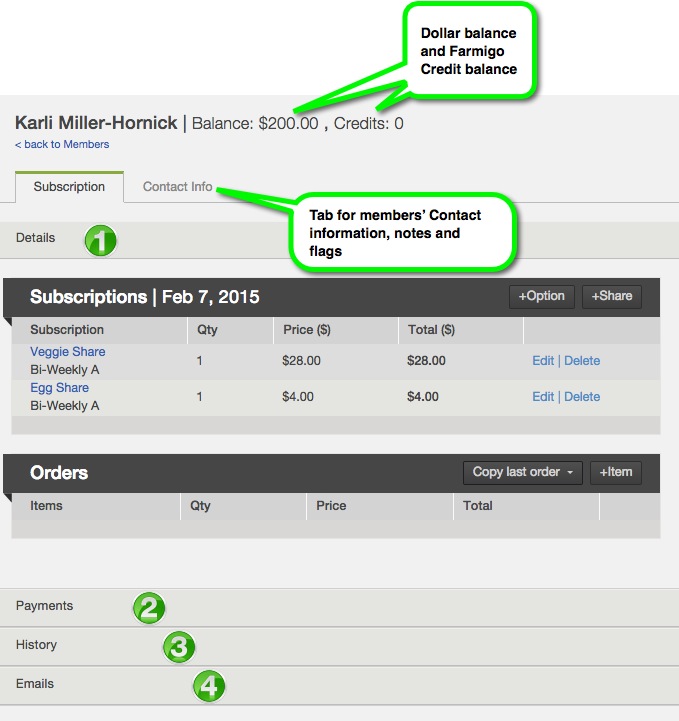 |
At the top of the member's account page, you can see the member's:
You will start on the Subscription tab. Read on below to learn more about the different sections under this tab. You can also switch to the Contact Info tab to update the member's contact details, add a note, and add a flag. This page provides a quick overview. Click here for more details. |
 |
Details Section |
The Details section of a member's account will give you an overview of their current subscription. You can use this section to answer questions like:
- When is the member's next scheduled delivery day?
- What payment plan is the member assigned to?
- Does the member have a store order for their next delivery?
- Does a member have any vacation holds coming up?
Click here for an in-depth description of all fields in the Details section. When looking through this information, try to imagine a question that the information might help to answer. This can help put you in a critical mindset when trying to read through a lot of content!
 |
Payments Section |
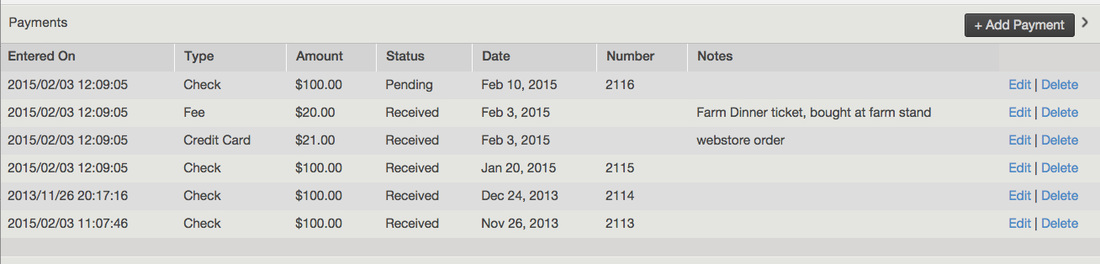
The Payments section tracks all payments that have been made and any future pending payments that a member needs to make. You can use this section to do things like:
- Add a payment, such as cash or check payment
- Add a fee
- Review how much money a member has already paid you
- Review which electronic payment method a member has used
- Learn why a member has a payment issue
Payments will be automatically recording in this section according to members' payment plan. Click here for more information on when a member gets automatically charged.
 |
History Section |

When trying to figure out why a member has a certain balance, we always look to the history section first. The history section acts as a balance sheet for your member. It takes some mental math, but the information provided here can bring you to an answer. The History tab tracks the following:
- Payments made
- Subscriptions delivered
- Store orders delivered
- Delivery holds
Check out this help page for a more in-depth discussion of tracking debits and credits using the member's History section.
 |
Emails Section |
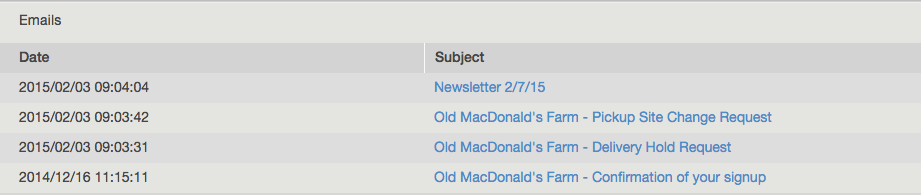
The email tab is the secret weapon to uncovering a member's past! The automatic responses that are sent out by the system, such as the Web Order Confirmation or Pickup Site Change Request, are only sent when a member takes that action through their account. If an admin makes a change in the system, you will not see that one of these emails was triggered.
You can look at historic emails to find out more information about:
- The member's current/previous pick-up location
- The member's current/previous web order
- The member's current/previous subscriptions
Click here to learn more about how to edit the emails that a member receives.
Did this article answer your question?
You might also find these helpful
Still have questions?
Our support team is here.