Units
How do create additional unit labels?
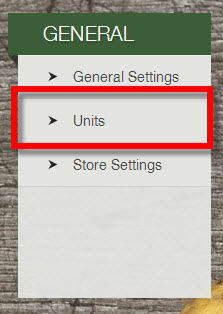
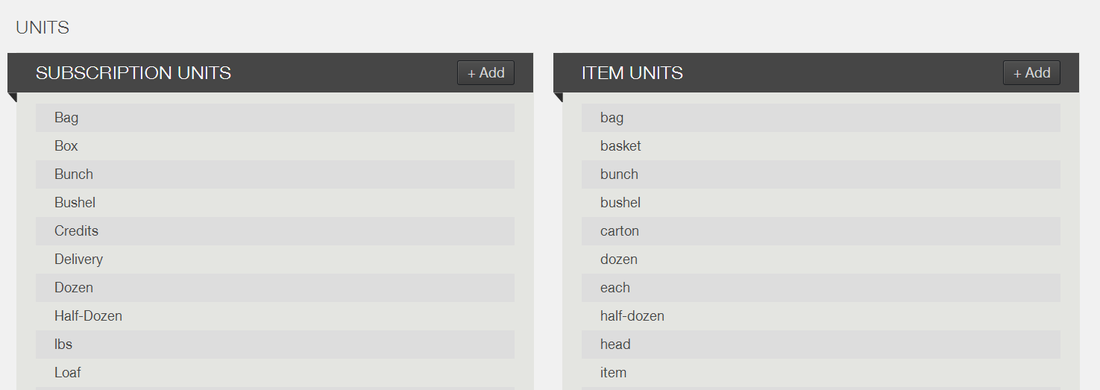
To edit Units, click on the Settings Icon in the sidebar menu. Then click on the Units under the General section. From the Units page, you can add new units to be used for shares, options, and items.
|
 |
How to add a unit
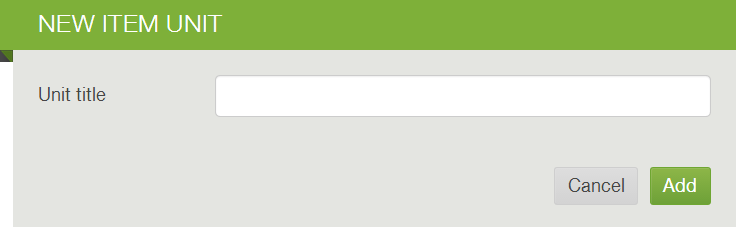
To add a new unit click +Add from the head for Subscription Units or Item Units. Enter the name of the unit you would like to add, click Add, and save changes.
How to set a unit
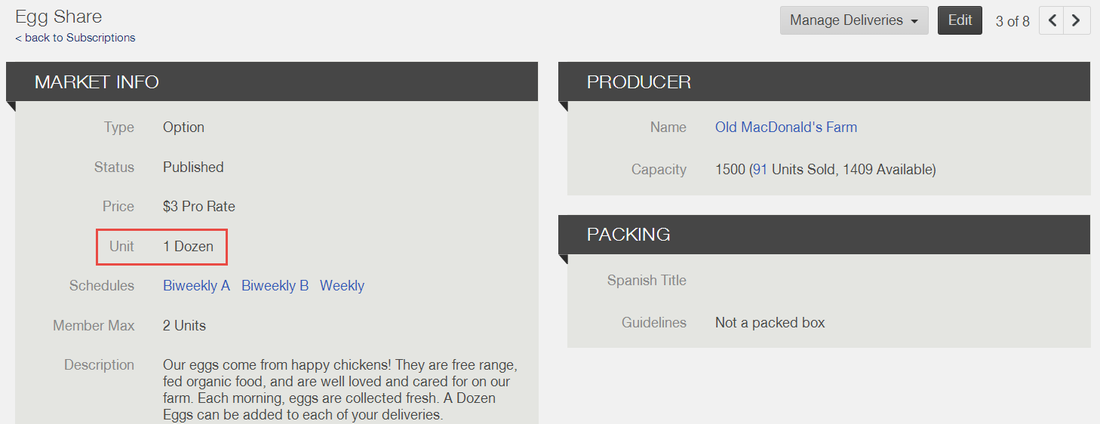
Then you can set the unit within the share/option/item page.
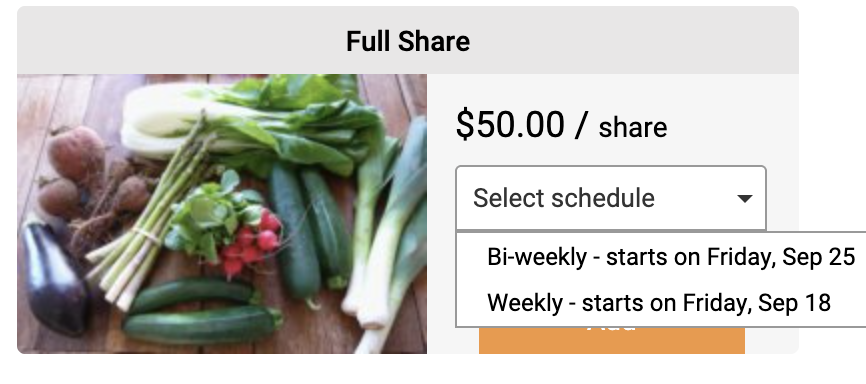
Where members see unit labels
This is what it looks like from a member's point of view.
Did this article answer your question?
You might also find these helpful
Still have questions?
Our support team is here.