How to Sync Schedules for Shares & Options
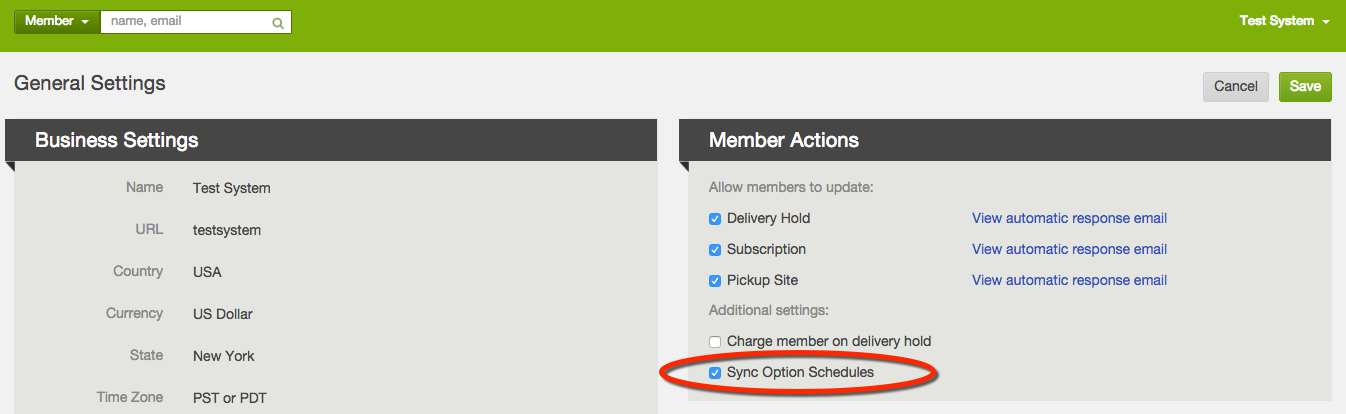
You can update the setting to "sync option schedules" and the system will only allow a member to choose options that correspond with the same schedule as their share choice.
To update the setting to "sync option schedules" go to Settings → General Settings → Member Actions. Click the edit button, then check the box to "sync option schedules", and push save.
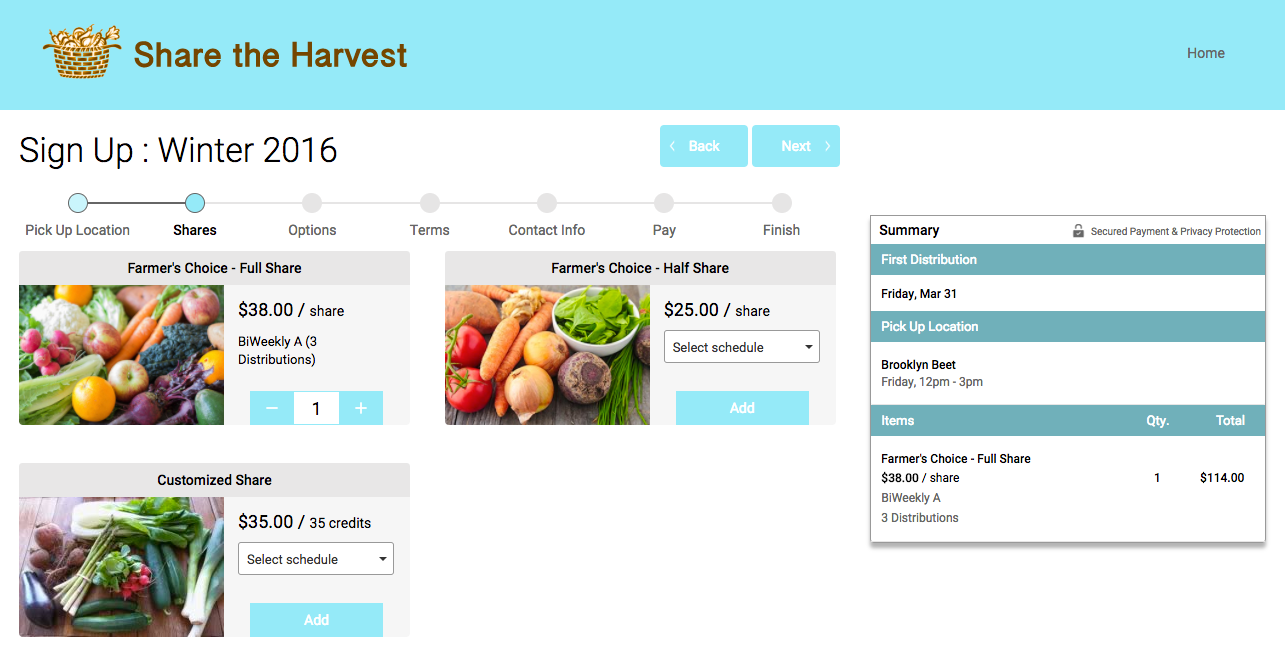
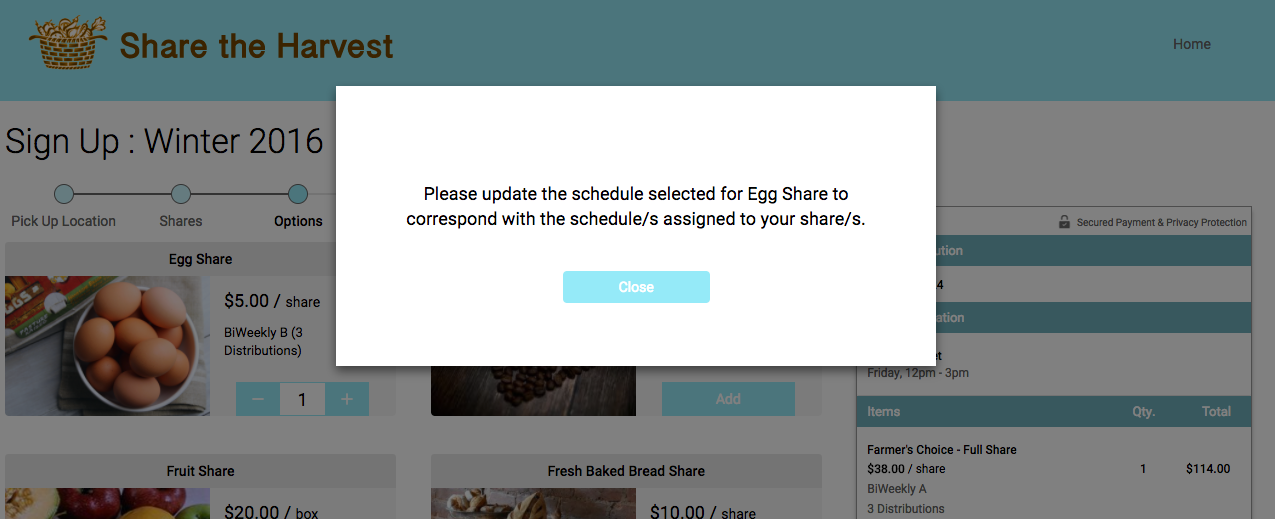
When the member chooses their share or shares, the system will only let them choose options that correspond with those schedules. For example if a member chooses a Bi-Weekly Subscription, then the system will prompt them to choose any options on the same Bi-Weekly schedule if they choose a different schedule for the option.
Did this article answer your question?
You might also find these helpful
Still have questions?
Our support team is here.