Routes: Hosts
Why should I assign a host to a location?
Many of our customers have numerous pickup locations. Although we all want - and sometimes need to be - in two places at once, it just isn't possible. Site hosts are members who help you distribute shares when you can't make it to all of your pickup locations. Assigning a member as a site host gives them access to the tools and resources they need to be prepared to help distribute shares. Learn more about:
- How to view all hosts and communicate with your hosts
- How to assign a host to a location
- How members may view contact information for their location host
- Host resources for managing their location
How to view and communicate with hosts
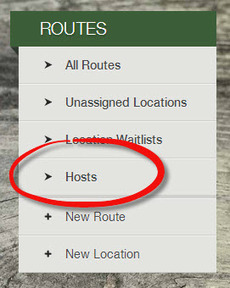
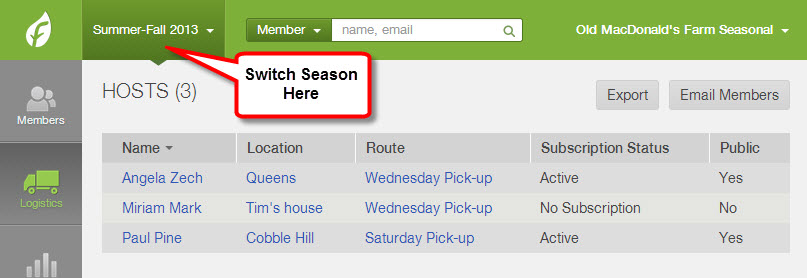
- To view a list of all hosts for a specific season, go to Logistics from the left sidebar and select Hosts under the Routes section.
- Click Email Members in the upper right corner to email all hosts.
- Click Export in the upper right corner to download a list of all hosts.
How to assign hosts to a location
- A host must have a member account in order to be assigned as a host to a location (learn how to create a member account from the dashboard); they are not required to have an active subscription.
- A host can be assigned to multiple pickup sites and multiple hosts may be assigned to a pickup site.
- Do not assign a host to a delivery zone, they will not be associated with the unique location created for the member's home.
To assign a host to location:
- Find the location that you would like to edit in the dashboard (learn more).
- Click Edit in the upper right corner.
- Next to Hosts, click the button + Add.
- You will be able to look up the host by name or email address.
- Next to Publish Contact Info: Choose Yes if you would like to allow members to see the contact information of the host assigned to their location.
- Click Ok and save changes for the location.
How members can see host contact information
If you have chosen to publish the host's contact information, members will see the host's phone number and email when they log into their account and click on the Pick-up Directions tab.
Host Reports
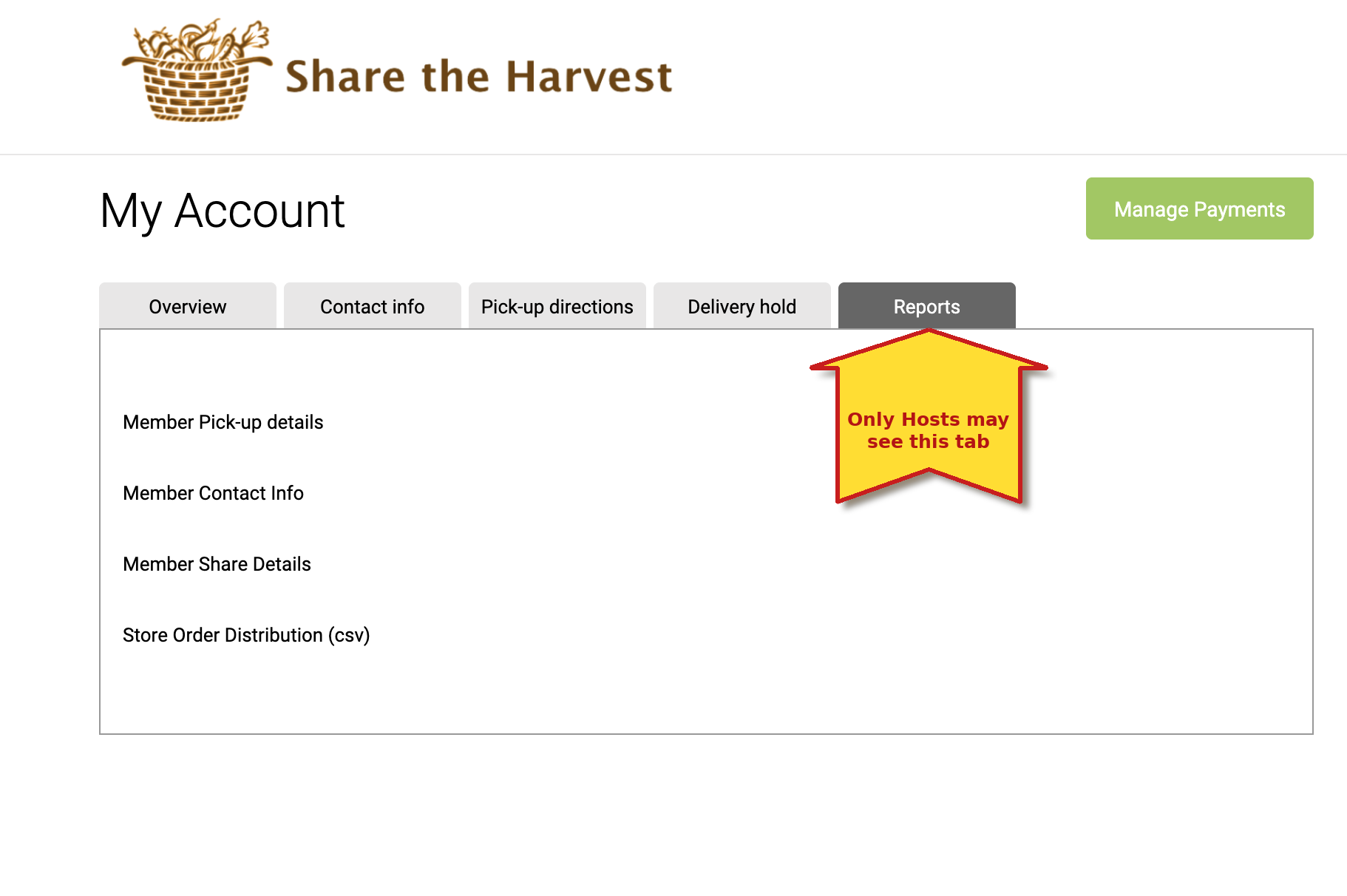
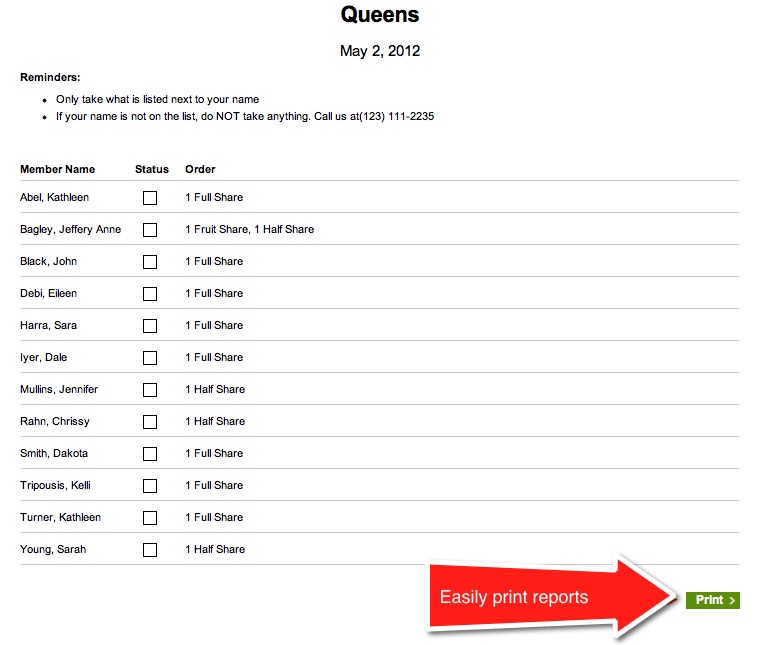
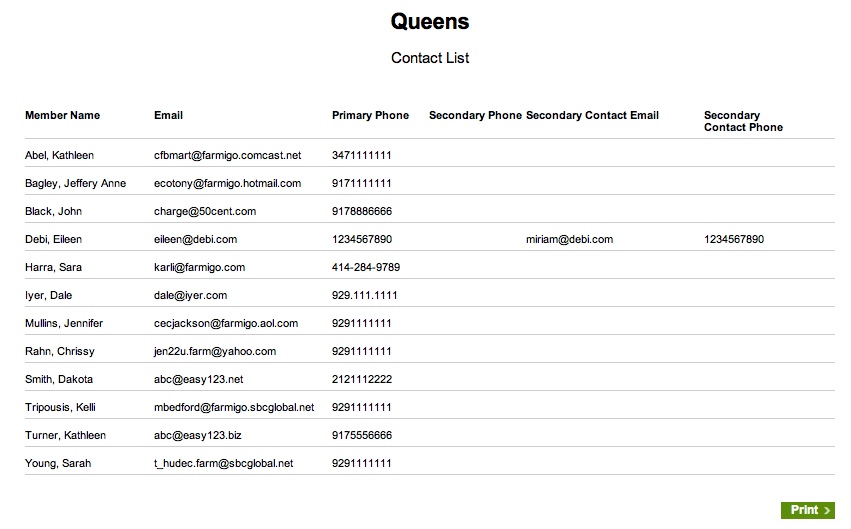
When a host logs into their member account, they will see a Reports tab. From this section, they can view and print a PDF version of the Member Pick-up Details Report and the Member Contact Info Report. They may also download a CSV file of the Store Order Distribution Report, which breaks out what each member has ordered from the web store.
*NOTE* If you do NOT want to give hosts access to these reports, please let us know at support@farmigo.com and we can remove host access to reports.
Member Pick-up Details
The Member Pick-up Details Report is formatted as a checklist that displays the member name and what they ordered. (This report may also be generated from the admin dashboard.)
Member Contact Info
The Member Contact Info Report shows contact info for each member, including phone number and email. If the member has provided secondary contact information, it will be displayed as well. (Learn more about the Member Contact Info Report.)
Store Order Distribution
This report will list all members who have store orders and include their address. This report is helpful if your hosts manage home delivery. Contact support@farmigo.com to learn more.
Did this article answer your question?
You might also find these helpful
Still have questions?
Our support team is here.