How can I see routes and locations on the map?
How can I view specific routes on a map?
Farmigo utilizes the Google Maps application to help you see your routes and locations on a map from the dashboard.
- See different routes from the Routes manager
- Switch to the map view from a Routes page
- See a map of all Unassigned Locations
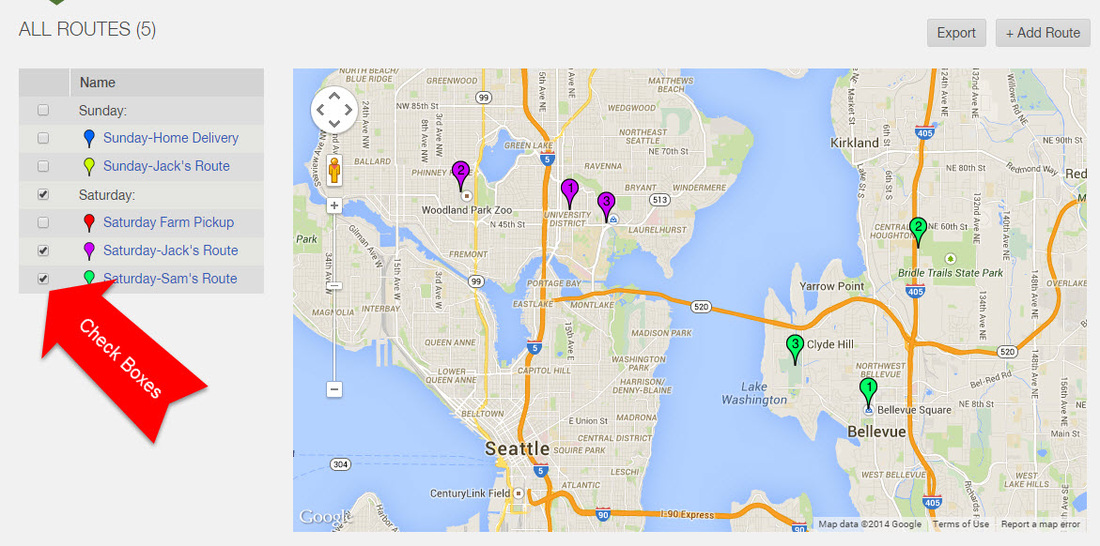
How to use the checkboxes from the Routes manager
To get to the Routes manager, click the Logistics icon on the left and select All Routes under the Routes section. On this page, the pins on the map share pick-up sites and delivery zones. (To see home delivery locations go to the page for the route they're assigned to.)
You can deselect the check boxes for an entire delivery day and for specific routes. The remaining routes checked will be displayed on the map.
How to view a map of locations for a specific route
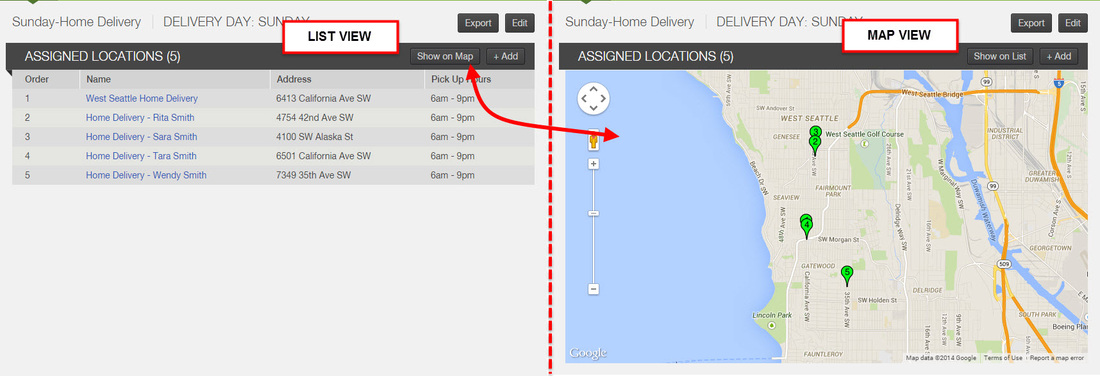
When you open the page for a specific Route, it will open in a list view. Click "Show on Map" to see a map of all locations assigned to that route. (To switch back to list view from map view, click "Show on List".)
How to view a map of unassigned locations
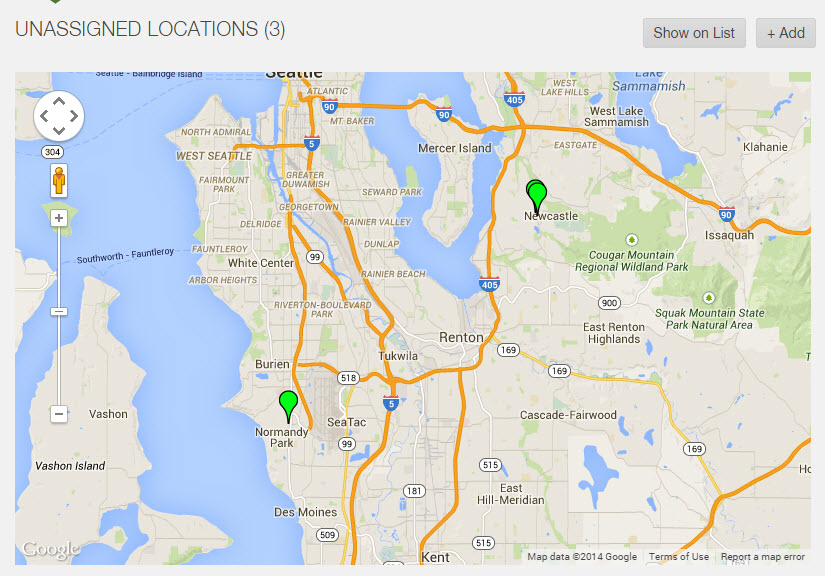
To view a map of unassigned locations (locations that are not assigned to a route and are not active for delivery):
- Click on the Logistics icon from the left
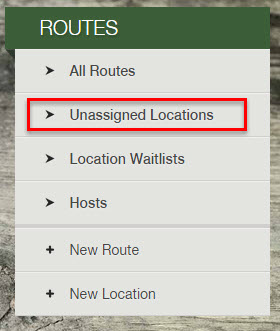
- Select Unassigned Locations under the Routes manager
- Click the button "Show on Map"
Did this article answer your question?
You might also find these helpful
Still have questions?
Our support team is here.