How do I edit a member's store order?
Members > Store Orders > How do I edit a member's store order?
How do I edit a member's store order?
1) Use the search bar at the top of the dashboard to pull up the member page whose order you would like to edit:

2) Once on the member page, click the edit button in the upper right hand corner:
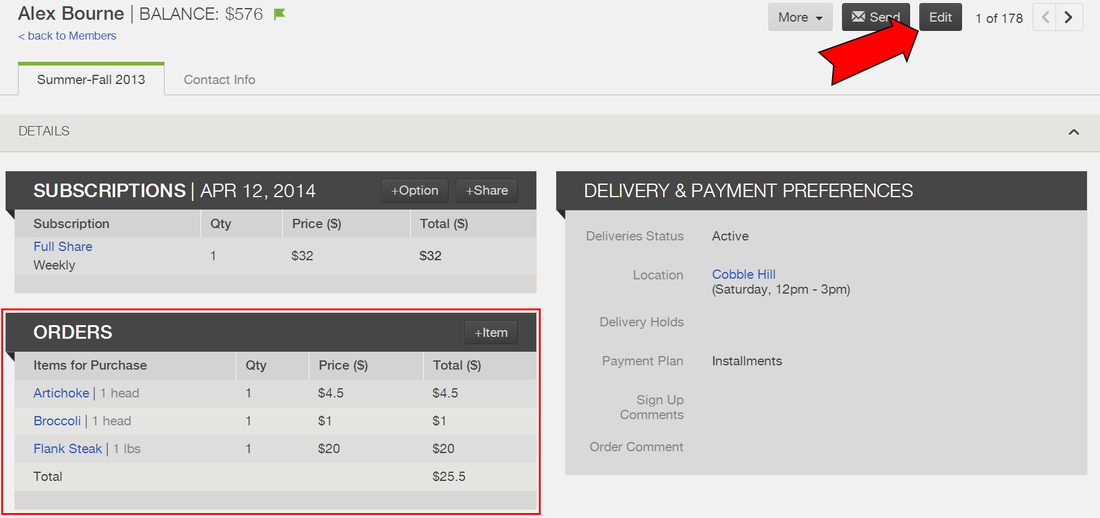
Options for editing orders:
1. Edit/Delete: If you would like to delete the item from a member's order, click delete. To edit the price or quantity of a member's order, click edit. A window will open with the header "Edit Item." Once you make updates to the price or quantity press Save.
2. + Item: Click +Item to add an additional item to a member's order.
3. Copy Last Order: This will copy the most recent order a member has received and make it the active order for the upcoming delivery. You can choose to include Only Available Items or All Items.
!ALWAYS PRESS SAVE IN THE UPPER RIGHT HAND CORNER
AFTER YOU FINISH MAKING EDITS!
Did this article answer your question?
You might also find these helpful
Still have questions?
Our support team is here.