Custom Webstore Settings
Custom Webstore Settings
The webstore has many unique settings to fit your needs, whether you're utilizing the store custom shares, one-time sales, or guest access sales.
1. Shopping Cart - Allow a customer to fill the cart with items before creating an account or signing in. This will simplify the checkout process and adds less steps to the check-out. (pictured)
2. Mobile View - Simplify the store view in mobile. Rather than switching between categories, the store can be presented in one list. Members can easily scroll the entire inventory and fill the cart without having to change between categories.
~Contact Support to have either of these settings enabled
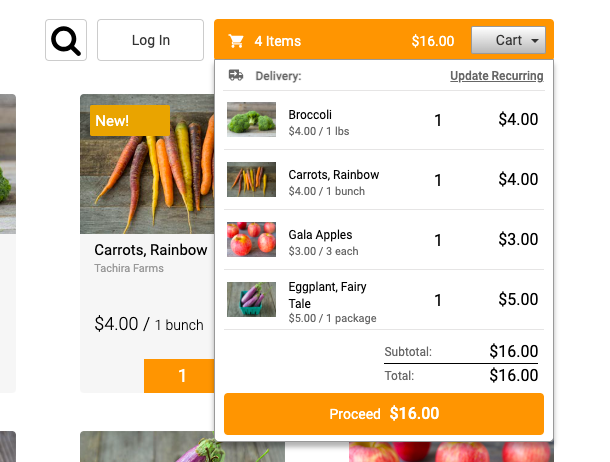
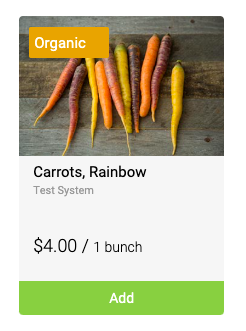
3. Item Label - highlight items in the web-store by adding labels that get layered on top of the image.
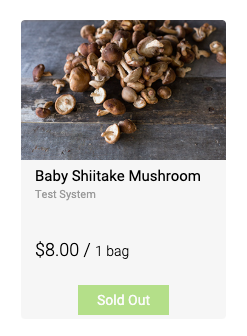
4. Keep Sold Out Items Presented in the Store - continue to present sold out items in the store while not enabling the member to add them to their cart.
~Contact Support to have this setting enabled
More Ways to Utilize the Webstore
1. Inventory Tools:
Bulk Item Update Tool - Quickly and efficiently edit the following properties: availability, status, and price.
Bulk Edit Existing Orders - make adjustments to existing orders quickly and efficiently.
Did this article answer your question?
You might also find these helpful
Still have questions?
Our support team is here.