Important details to confirm in your dashboard
FAQs and Important details to confirm in your dashboard
After years of working with customers to set up Farmigo systems and meet their operational needs, here are some frequently asked questions that we've seen pop up for new customers. We strongly advise you to review these setting in your dashboard:1. The Pro Rate button (seasonal systems only)
If you are a seasonal system, you may accept sign-ups after the season has begun. Check the box for Pro Rate for all of your subscriptions (shares and option) if you do not want members to be charged for delivery dates that they have missed.
2. Location Type - Delivery Zone v. Pickup Site
Setting up a location with Type = Delivery Zone will generate unique locations for each member that selects this location at signup. Be sure not to change the location type from the default of "Pickup Site" unless you would like each member to be assigned to an individual unique location.
3. Removing locations or subscriptions from sign up
- To remove a subscription from the sign up page, open the subscription page and change the status of the subscription from "Published" to "Draft"
- To remove a location from the sign up page, open the location page. Change the Capacity field to "0" and change the Waitlist field to "Disabled".
4. General Settings: Member Actions
Your Member Access Hours control when members can place orders in the webstore and also when members can take certain actions in their accounts. To enable these actions, go to Settings > General Settings > Member Actions. Click here to learn more about these member actions.
Your Member Access Hours control when members can place orders in the webstore and also when members can take certain actions in their accounts. To enable these actions, go to Settings > General Settings > Member Actions. Click here to learn more about these member actions.
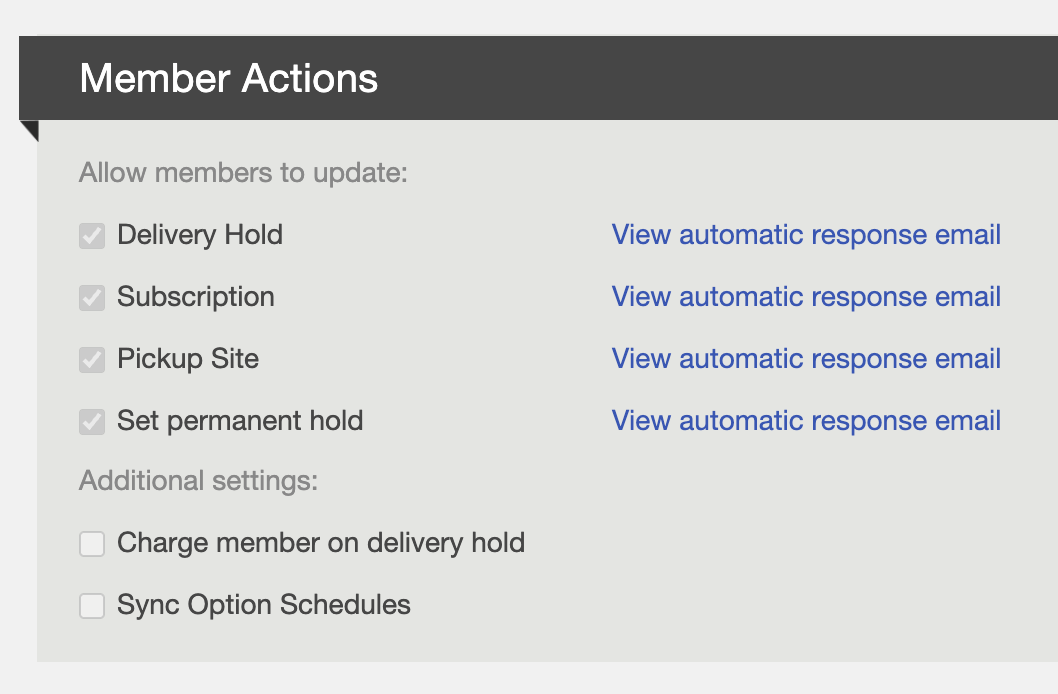
!ATTENTION! Putting a temporary hold on a members account will not stop them from being charged!
To stop a member from getting automatically charged, you should remove their payment token before their balance hits your pre-approve limit or before the date of their next pending payment.
- Click here to learn how to remove an automatic payment token.
- Click here to learn more about what causes a member to be charged.
If you offer ongoing payment plans, note that members will continue to be scheduled for delivery according to the schedule assigned to their shares, even if they have a balance of $0 or negative. If you offer members ongoing payment plans and non-recurring payment methods (i.e. one-time eCheck or paper check), you should monitor for members with a $0 or negative balance and follow up with them to make sure that they add money to their account or cancel their subscription. Click here to learn how to use filters to find members that meet such criteria.
*If your program uses pre-paid per distribution or pre-paid per subscription payment plans, you can request that support enable the feature to automatically place and remove permanent hold statuses based on the member's balance. In farms configured with this feature, the system will run a check for member balances less than or equal to $0 and set them on permanent hold. In the case where the balance is greater than $0 it will remove the permanent hold. The threshold for placing and removing holds can also be customized for your system.
Did this article answer your question?
You might also find these helpful
Still have questions?
Our support team is here.